How to fix garbled text in an AI-generated image without regenerating it
AI image generators are good at moons, gardens and lighting. They are still unreliable at spelling. A poster comes back with “MOONLIGT” instead of “MOONLIGHT”, a menu swaps a letter, or a book cover has a word that looks almost right until you read it.
The usual fix is to regenerate. That works when the whole image is wrong. It is a poor trade when the only problem is one word. A new generation changes the composition, the lighting, the faces and the background details, and it can introduce a different spelling mistake. You also spend another round of credits and review time.
For a single wrong word, editing the text inside the image is the smaller change.
What “editing the text” actually means
The lettering in a generated JPG or PNG is not a text layer. It is pixels. Changing one word means three things have to happen:
- Remove the old lettering.
- Rebuild the surface behind it.
- Draw the new lettering in the same weight, colour and alignment.
That is why a normal photo editor is awkward here. The clone tool has to rebuild the background by hand, and the new word rarely matches the original type. An editor that works on flattened images does the three steps in one pass.
Step by step
- Upload the image. JPG, PNG and WebP are supported up to 10 MB.
- Enter the text exactly as it appears, including the misspelling. You can also select the text region in the preview.
- Enter the corrected text.
- Generate, check the result at 100%, then download.
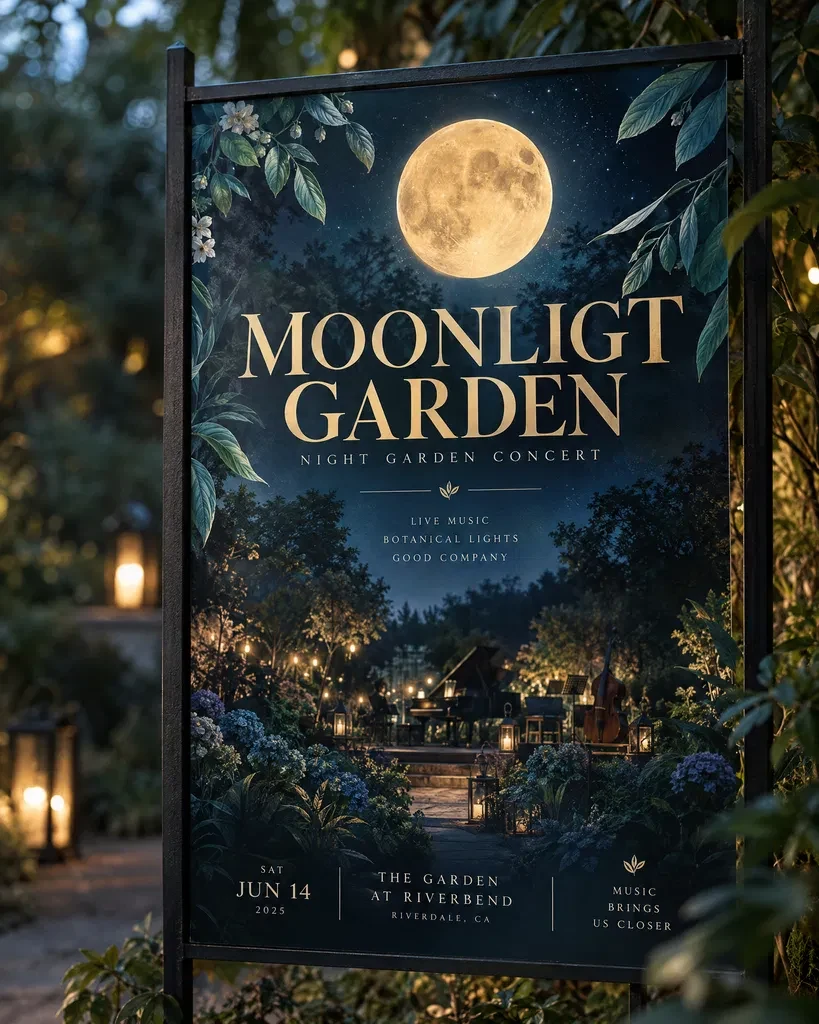
Before: the generated poster reads “MOONLIGT”.
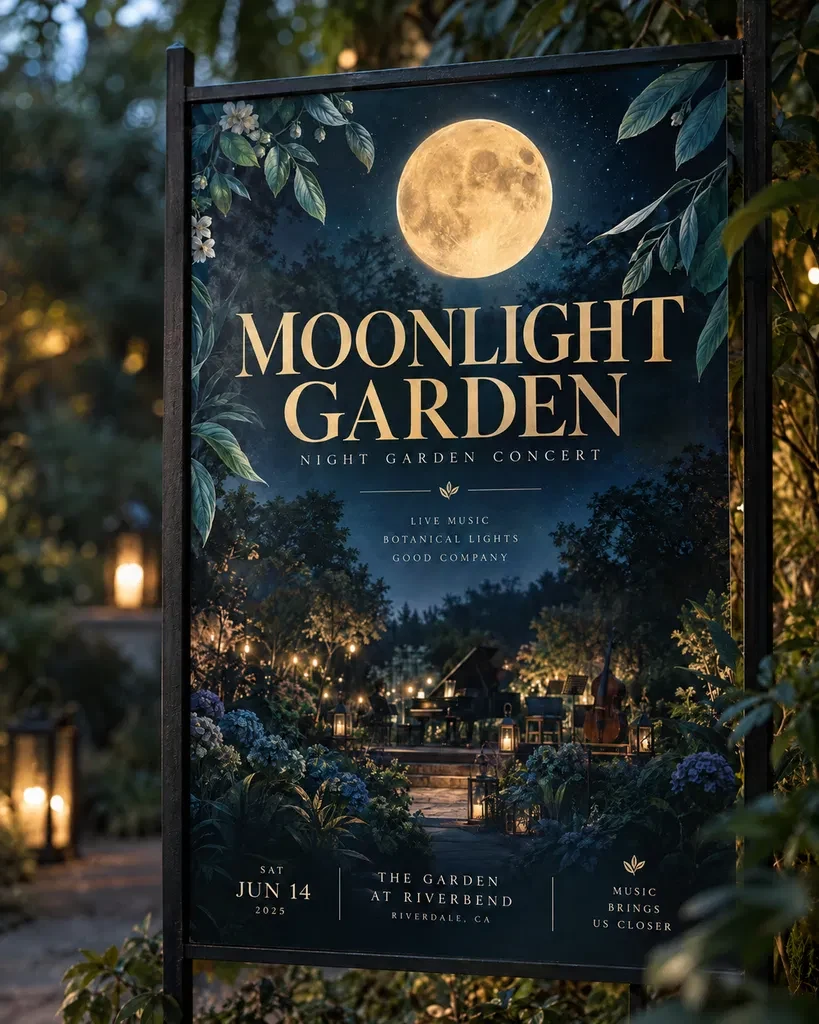
After: the headline reads “MOONLIGHT”. The moon, plants, lights and layout are unchanged.
In the example above, only the headline changed. The rest of the poster — the moon, the garden, the small print at the bottom — is the same picture as before. That is the point of editing instead of regenerating.
Where this works well
- Flat or softly blurred backgrounds.
- Clear, high-contrast lettering.
- One wrong word or a short line.
- Posters, menus, labels, book covers and thumbnails.
Where it struggles
- Curved or highly decorative lettering.
- Text over faces, logos or detailed objects; the rebuilt area is an approximation.
- Very small text or a low-resolution source.
- Several errors in different places; regenerating may be faster.
- Print production, where a pixel-level match matters.
The exact typeface cannot be recovered from a flattened image. A good editor can match weight, spacing and colour, but it is reconstructing the lettering, not reopening the original font file.
A note on non-Latin text
The same workflow can replace Japanese, Chinese, Cyrillic and other scripts, but dense strokes are harder. Check the result at full size, and expect some cases to need a second attempt.
When to regenerate instead
Regenerate if the composition is wrong, if the image has many errors, or if you need a different style. Editing text is for the case where the picture is right and the words are wrong.
Try it on one image
You can run this workflow in the AI image text editor. The first edit is free; a Google sign-in protects the free credit and no payment method is needed. For ordinary screenshots and photos, the same image text editor handles the job. If the problem is a plain typo rather than AI lettering, the fix a typo in an image workflow is the same tool with a narrower name.
Start with the one word that is wrong. If the preview keeps the rest of the picture intact, you have saved yourself a regeneration.
Comments
Post a Comment